.png)
For a long time, Adobe Acrobat dominated the world of PDF document editing. The software is "polished" but too expensive (almost 300 euro year after year). Nowadays, however, you can opt for a cheaper solution with similar functionality. PDF-XChange Editor from Tracker Software Products is one of them. The purchase price is a one-time payment in the form of a perpetual license.
What is PDF-XChange
PDF-XChange is both the name of a British company that is the 100% owner of Tracker Software Products (PDF-XChange Co Ltd.) and has been on the market for almost 30 years. During this time, it has become a global leader in PDF software. The company declares on its website that it will provide you with everything you need for creating, editing, enhancing, and converting documents, all in the international ISO standard for PDF files.
PDF-XChange is also the name of a software portfolio focused on working with PDFs, for which you don't need to pay exorbitantly high prices. It includes a complete suite of tools from basic editors to advanced OCR technologies and tools for batch document processing.
The company's main philosophy is to provide the best price/performance ratio in the PDF industry. Their products therefore rank among the most affordable, while offering functionality comparable to much more expensive competitors. The software is localized in more than 30 languages.
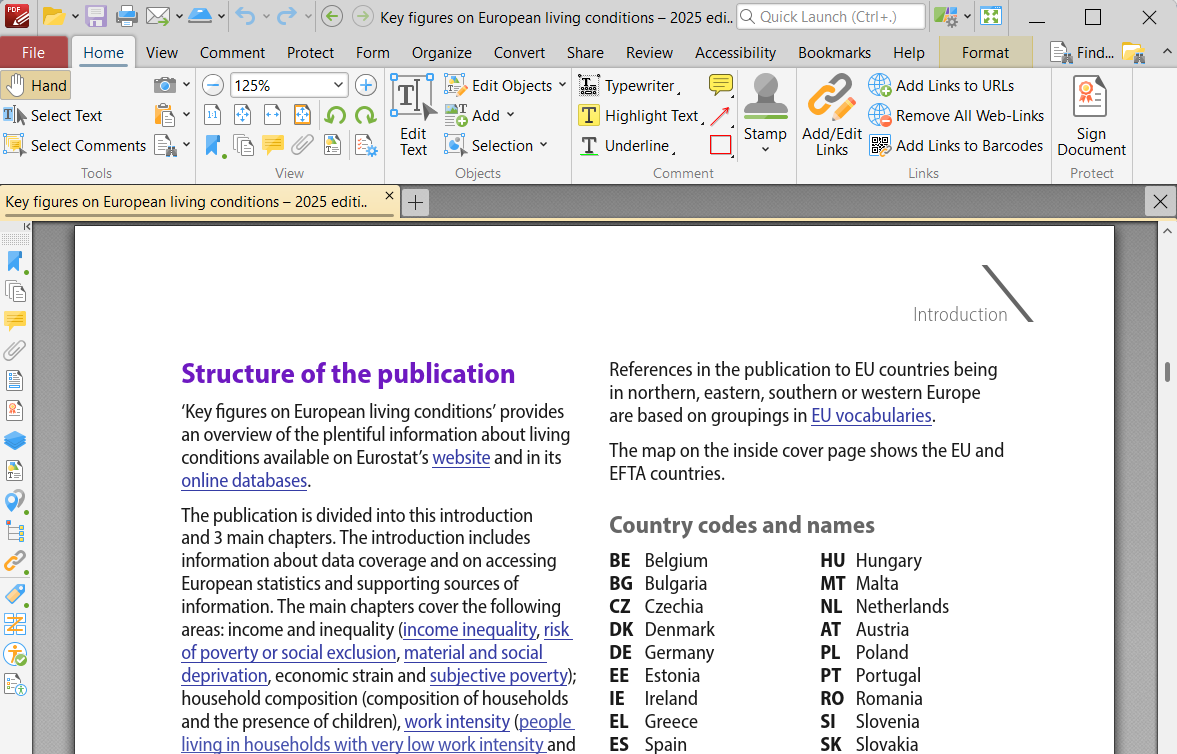
But how does this cheaper competitor actually perform?
After several weeks of working with PDF-XChange Editor, we can confidently write that it is a very good choice for most users looking for a functional and easy-to-use tool for work, for which they won't have to constantly pay high sums. It's not a design masterpiece like Adobe products and some minor features are missing, but it does the main job reliably and surprisingly easily.
Let's dive deeper into the capabilities and also into the work style with PDF-XChange. Below you'll learn about everything that led us to the conclusion you just read.
Overview of Versions: From Trial to Complete Professional Package
PDF-XChange is offered in several package variants. Why? So that each type of user can purchase the functional areas they will use. And they don't have to pay for a comprehensive solution when they need to work with PDFs only at a basic level and with the most common functions. In short: everything tailored to your needs.
Licenses are purchased for one user (may install on 2 devices). The program requires Windows operating system.
PDF-XChange Editor Free (free)
The basic free version offers surprisingly rich functionality - commenting, basic editing, conversion to PDF/A, and even electronic signatures. It also serves as a trial version of paid variants.
PDF-XChange Editor (basic paid version)
Complete editor with the ability to directly edit text, merge documents, security, and digital signatures. A sufficient solution for most users.
PDF-XChange Editor Plus + EOCR
Extends the basic version with advanced ABBYY FineReader OCR technology for text recognition in scanned documents and tools for creating interactive forms.
PDF-XChange Standard Printer
Virtual printer for converting documents to PDF from any Windows application. Enables printing to PDF, PDF/A, and PDF/X formats with advanced security and optimization. Integrates directly into MS Office and Outlook.
PDF Tools
Specialized tool for batch PDF document processing. Contains 81 preset tools for automation, ability to create custom workflows, and folder monitoring for automatic processing. Ideal for organizations processing large volumes of documents.
The complete package includes all of the above-mentioned offerings: editor, advanced ABBYY FineReader OCR technology, virtual printer, and tools for batch processing. It is the most comprehensive solution for professional use, not only in larger companies.
You Might Ask: Wouldn't Free Online PDF Editing Be Enough?
Maybe it would. But only for the most basic tasks that you need at most a few times a month. And then there's another necessary condition: your PDFs must not contain any sensitive data. Remember that by sending a document for online processing, you lose all control over it, and you have no idea what the data extracted from it will be used for later!
Warning! Online Makes Mistakes!
We have found that compared to free online tools, PDF-XChange offers not only significantly more functions. But above all, reliability. And not only in the area of OCR and advanced editing, but also for such basic requirements as conversion from Word to PDF.
Most commonly, we encounter these problems with online conversions:
- online conversion often skips words, sometimes even entire lines
- free online OCR recognizes only part of the text, often incorrectly
- in editing, you can't set almost anything precisely
- when merging PDFs, you have to accept different formats of individual pages, etc.
Main Features: What PDF-XChange Can Do
PDF-XChange Editor is among those programs that don't look like a miracle at first glance, but when you start trying them, you gradually discover more and more possibilities. The range of functions is definitely sufficient even for professional use: from basic text editing to advanced OCR and batch processing of hundreds of documents.
PDF-XChange tries to be a universal tool. And it succeeds better than one would expect from a program in this price category and with this design. Overall, it covers practically all common and advanced PDF work needs. Let's look at 8 areas in which the program excels:
Editing PDF Documents
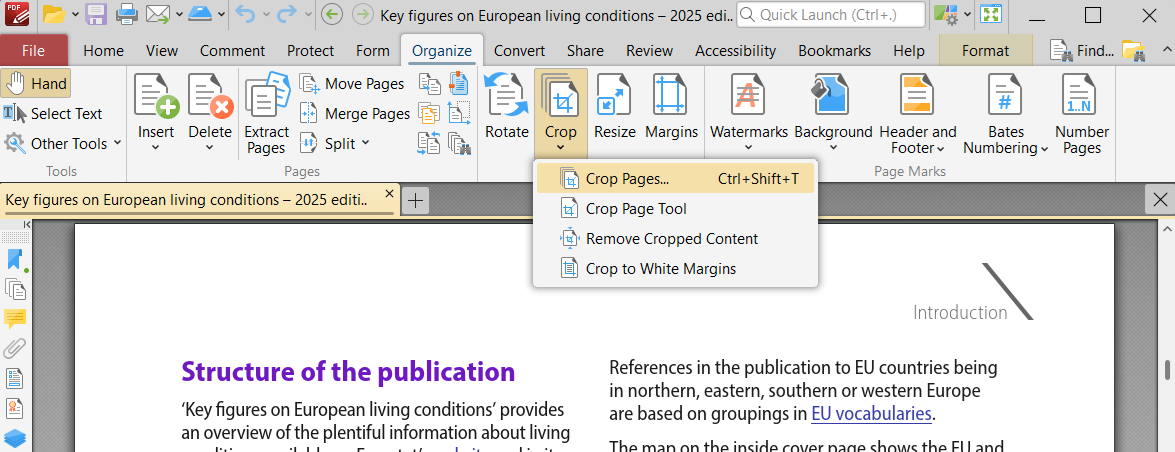
PDF-XChange allows direct editing of text and graphics in PDF files. When the editing mode is activated, text is divided into text fields that can be changed similarly to a text editor. It's not as elegant as Adobe Acrobat, but it's definitely functional and extremely easy to understand the principle of controlling this function.
Security and Digital Signatures
PDF-XChange supports qualified electronic signatures according to eIDAS, 256-bit encryption, and anonymization of sensitive data. For many companies, this is important functionality that is missing elsewhere or costs extra fees.
Integration with Microsoft Environment
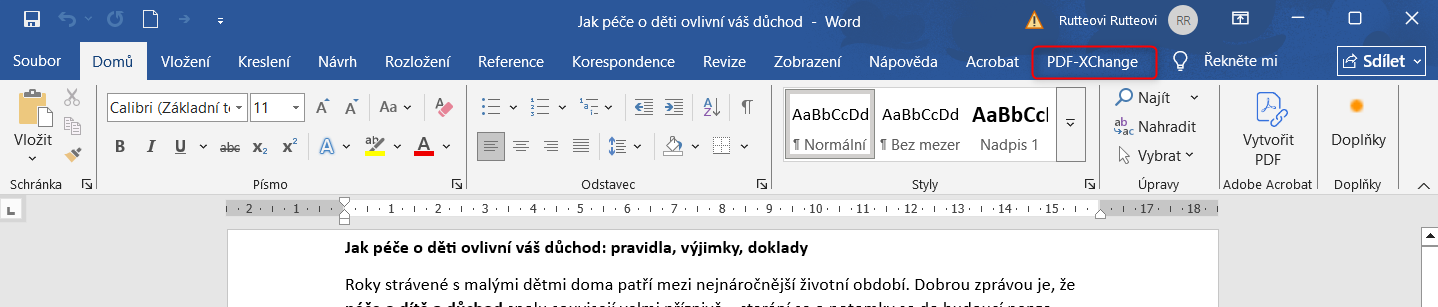
Standard Printer integrates seamlessly into MS Office and Outlook. Not only can it convert Word documents, Excel, presentations, images, and other file types to PDF with one click while preserving all bookmarks and links. But it can also convert entire email conversations, including attachments, into PDF portfolios. An extremely practical function for office environments.
The process also works in the opposite direction. See here how to convert PDF to Word.
Merging and Organizing Documents
The program can merge practically any files (PDF, DOCX, XLSX, images) into one PDF document. Working with the program is intuitive here too: just select files in the explorer, right-click and choose "Combine in PDF-XChange Editor". And it's done. You can find a practical guide with video here.
OCR Technology
One of the program's strongest sides. OCR in the Plus version reliably recognizes text even in more complex documents, images, and even in logos. The program can process more than 100 languages. In tests, we successfully converted even complex documents with graphics and various fonts. You can find one example here.
Batch Processing and Automation
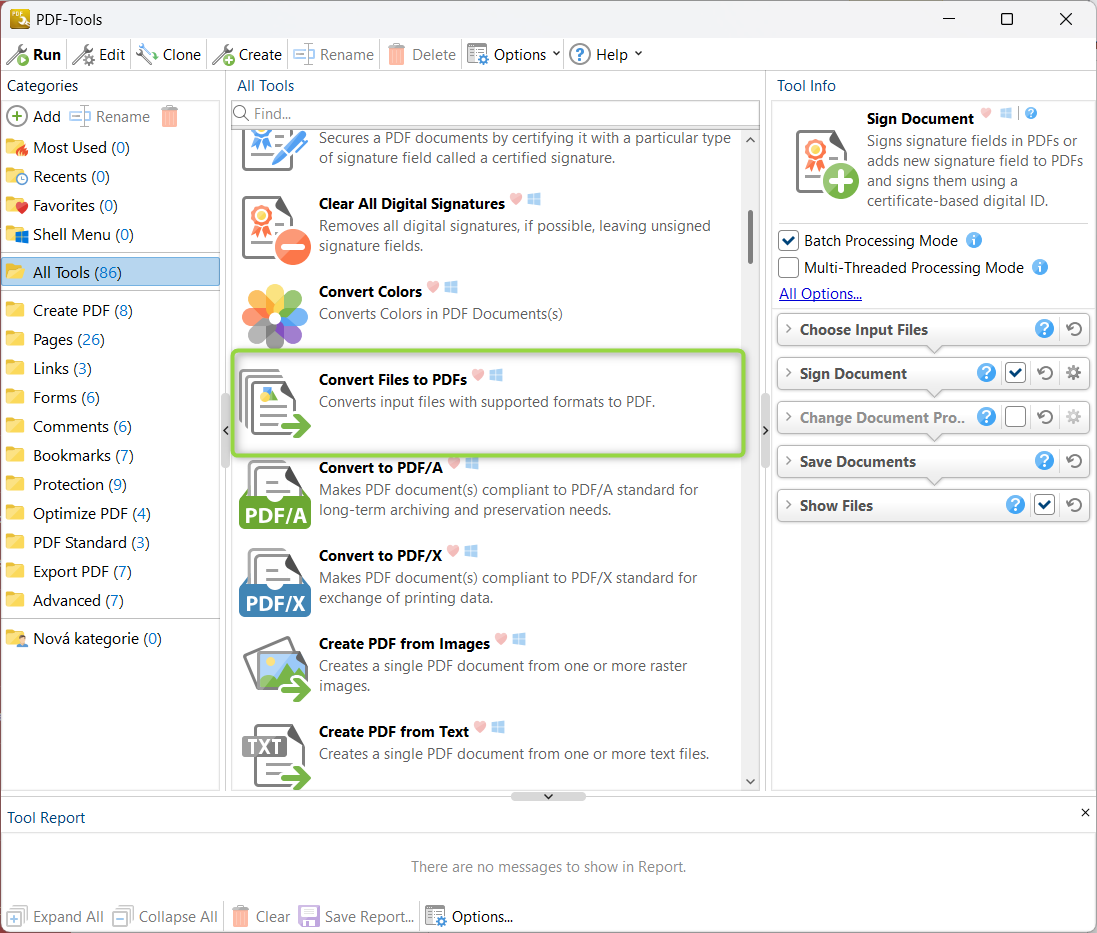
PDF Tools offers 81 preset tools for automation and 91 actions for creating custom workflows. You can set up folder monitoring, where the program automatically processes all new files according to your rules. For example, it can batch sign, convert to PDF/A, or merge documents. For companies processing hundreds of documents daily, this is a huge time saver.
Advanced Document Comparison
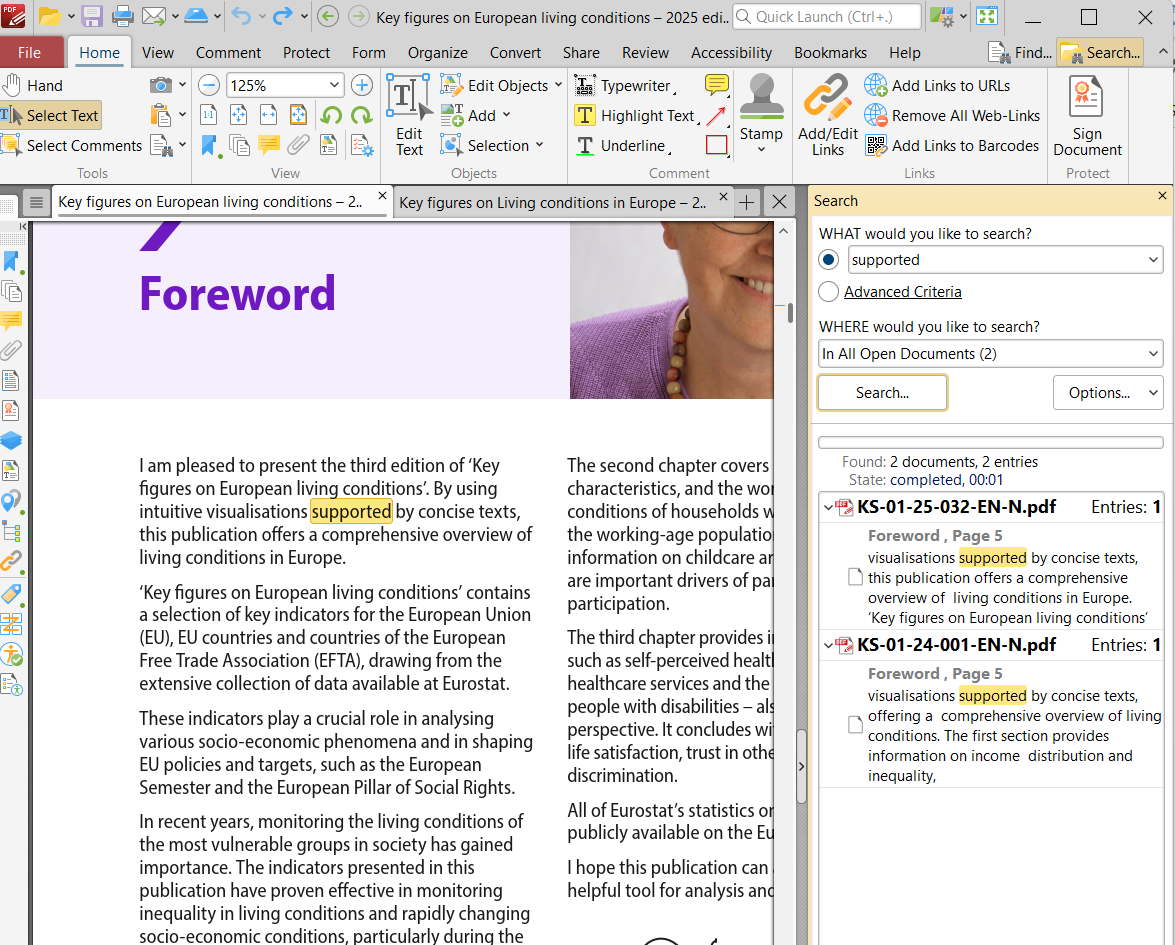
The PDF comparison function is unexpectedly sophisticated: it displays documents in parallel, highlights all changes, and provides detailed statistics (number of changes, additions, deletions). Additionally, it tracks formatting changes, which you'll appreciate when reviewing contracts or technical documentation, but also, for example, when comparing individual annual editions of catalogs from your suppliers.
Using Profiles and Templates
PDF-XChange allows saving custom profiles for different types of documents. You can, for example, create a profile for automatic conversion to PDF/A with specific security, or set up a template for printing documents with a watermark and digital signature at a designated position. Needless to say, profiles and templates save time on repetitive tasks.
Tutorial Examples to Prove That Working with PDF-XChange Is Really Easy
One of PDF-XChange Editor's greatest advantages is truly intuitive operation. Most operations are logically arranged and accessible with a few clicks. To prove that this isn't just a marketing phrase, below you'll find specific procedures for the most frequently performed PDF operations. You'll see that even seemingly complex operations like OCR or merging different file types can be done in a moment.
Combining Multiple Files into One PDF
One of the most common tasks, and although it looks complicated, it only takes 4 steps:
- in the file explorer, select files (with CTRL for multiple files)
- right-click and choose "Combine in PDF-XChange Editor"
- adjust the order of files as needed
- confirm with the OK button.
The entire process literally takes a few seconds and works with PDFs, Word documents, Excel spreadsheets, presentations, and images.
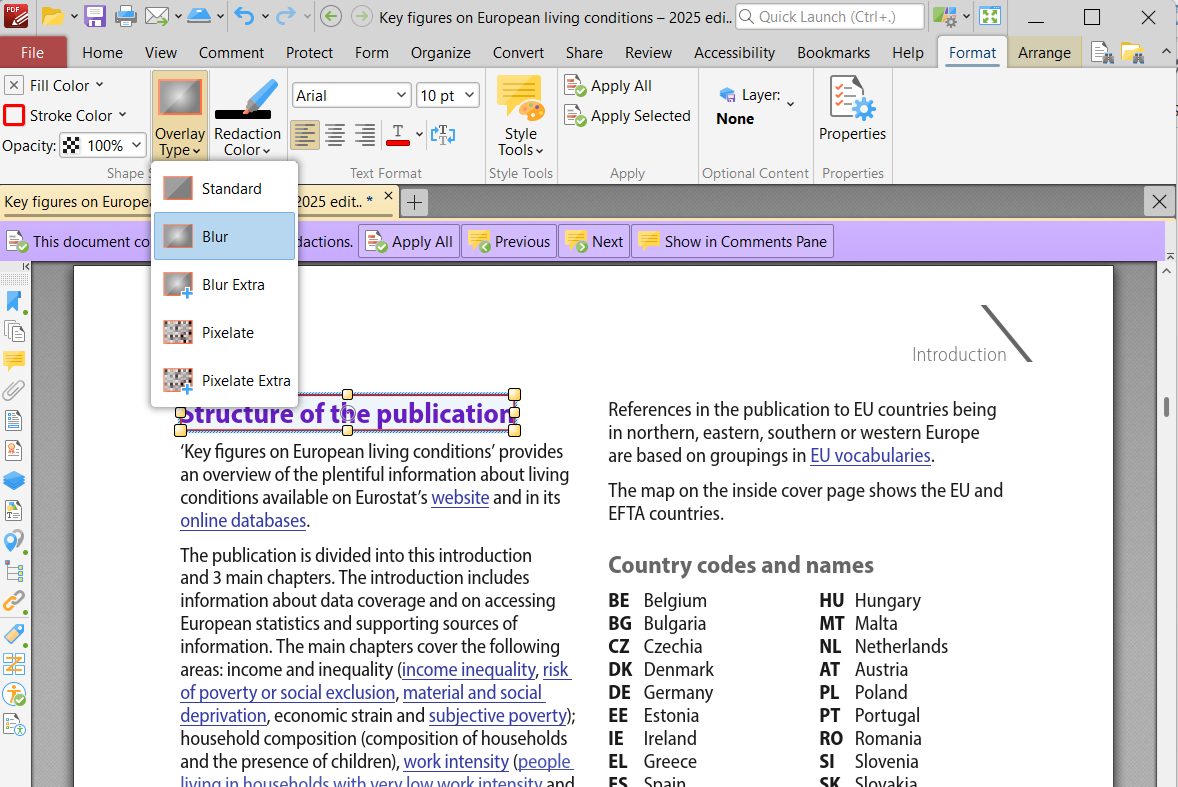
Redacting Sensitive Information
Anonymizing documents in PDF-XChange is a matter of three clicks:
- on the "Protection" tab, choose "Mark for Redaction"
- use the mouse to mark all parts for redaction
- click "Apply All".
Redacted information is permanently removed. It's an irreversible process, so we recommend always working with a copy of the document. The measure is this radical so that sensitive information cannot be "recovered" in any way. Only this way can you be absolutely sure when sharing documents that nothing will leak.
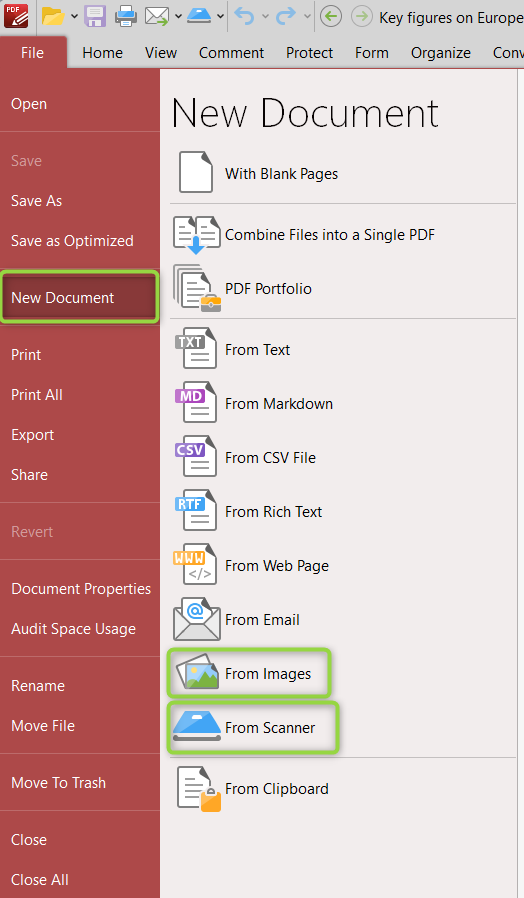
OCR or Converting Scans, Images, and Photos to Editable Text
Even this advanced function is surprisingly straightforward:
- open an image via "File" → "New Document" → "From Images"
- on the "Conversion" tab, click "OCR"
- adjust settings as needed
- start recognition.
The program automatically creates text layers over the original image, so you can normally copy or edit the text, move it, and so on. It recognizes even graphically tricky areas, for example, text placed around a circle.
Converting PDF to Word/Excel, to Images, or to PowerPoint
Conversion to other formats is equally simple:
- on the "Conversion" tab, choose "To MS Word" or "To MS Excel"
- adjust export settings
- choose the location of the new file and confirm.
The resulting files preserve the formatting and structure of the original PDF, including tables and images or the overall layout of PowerPoint presentations.
What We Like
- price/performance ratio: for the price of about four months of Adobe subscription, you have a full-fledged professional tool with a perpetual license
- ease of use: most operations are intuitive and fast
- reliable OCR: text recognition quality is surprisingly good
- batch operations: ability to process batches of documents at once
- plenty of language localisations.
What Could Be Better:
- interface design: looks somewhat outdated
- speed: we encounter that with large documents, it processes tasks somewhat slower than Adobe
For Whom Will PDF-XChange Be the Right Choice?
You probably already sense that the circle of users can be quite broad. From our experience with PDF-XChange packages, it seems that it can be particularly appreciated by:
- freelancers and self-employed individuals, for whom the price/performance ratio and the ability to work with various document formats are important
- small and medium-sized businesses that need a reliable PDF tool without high licensing costs, which also guarantees the use of qualified electronic signatures, archiving, and ISO standards
- offices and organizations that require similar functionality, i.e., electronic signatures and archiving to PDF/A format, all in ISO standards
- students and home users when they need to edit PDFs but don't want to rely on online converters and editors, nor pay for an Adobe subscription.
Like it? Buy it here!